Google PageSpeed Score: What It Means and How to Get 90+
Learn what your Google PageSpeed score really means, which metrics drive it, and the exact copy-paste fixes to push past 90+ without ruining UX.
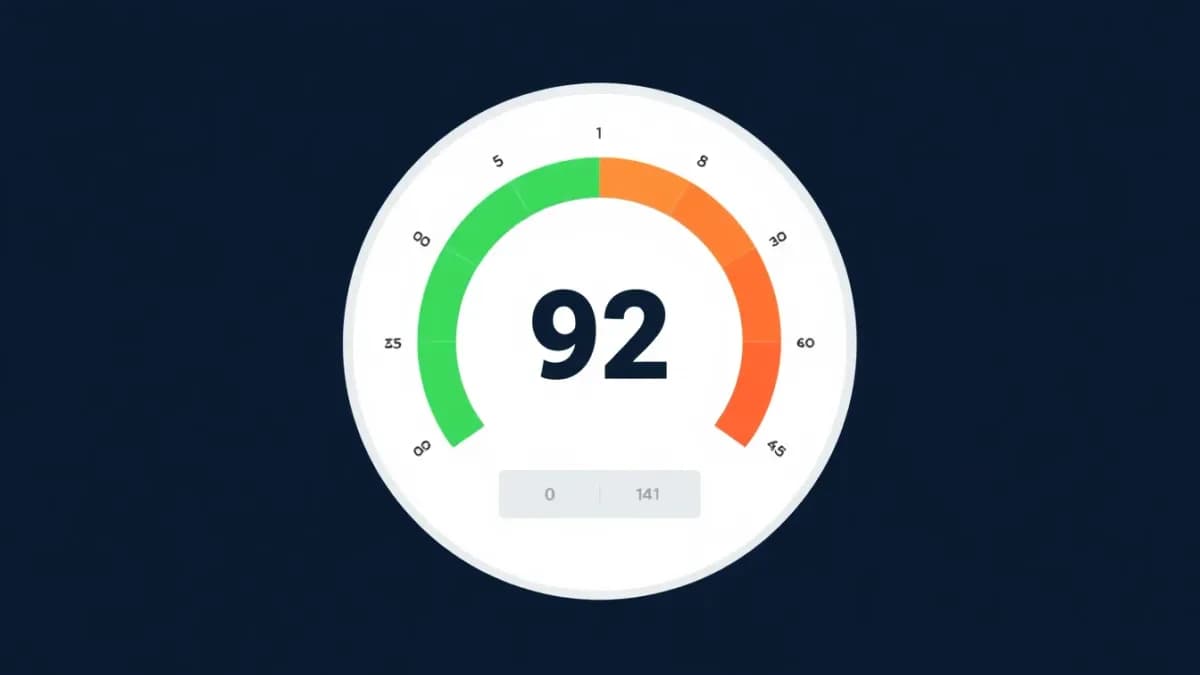
Your Google PageSpeed score is a 0–100 grade that Lighthouse assigns to a single page load based on six weighted performance metrics. It measures how fast and stable a page feels, not how well it ranks. Getting to 90+ means fixing the biggest contributors — Largest Contentful Paint, Total Blocking Time, and Cumulative Layout Shift — without gutting your design. Critically, the number you stare at in the tool (lab data) is not what Google uses to rank you; that's the real-user field data from the Chrome User Experience Report.
So before you delete your fonts and crush your images into mud chasing a perfect 100, understand what the score actually rewards. This guide breaks down every metric, separates lab from field data, and gives you copy-paste fixes ordered by impact.
What Is a Google PageSpeed Score?
Google PageSpeed Insights (PSI) is a free tool that analyzes a web page and produces a performance report. It runs on top of Lighthouse, Google's open-source auditing engine, and returns four scores from 0 to 100: Performance, Accessibility, Best Practices, and SEO.
The number most people obsess over — Performance — is built from two completely different data sources, and confusing them is the single most common mistake in speed optimization.
Lab data vs field data
Lab data is collected in a controlled, simulated environment. Lighthouse loads your page on a throttled connection (simulated slow 4G with a 4x CPU slowdown) from a cold start. It's reproducible and great for debugging, but it doesn't reflect how your actual visitors experience the page.
Field data (Real User Metrics, sourced from the Chrome User Experience Report, or CrUX) comes from real Chrome users who visited your site over the past 28 days. This is the data Google uses for ranking. If your page doesn't get enough traffic, PSI shows no field data at all — only the lab estimate.
The Performance score itself is a weighted blend of metrics calculated using a log-normal distribution. That distribution is why moving from 50 to 70 is relatively easy, but squeezing out the last points from 90 to 100 is brutally hard — each remaining millisecond costs more.

How the Score Is Calculated: Metric Weights
When you run a check you actually get four scores. Most people only read the Performance number, but the others carry real SEO and legal weight too.
Performance (the big number)
This is the headline metric. The current Lighthouse weighting for the mobile Performance score is:
| Metric | Weight | What it measures |
|---|---|---|
| Total Blocking Time (TBT) | 30% | Time the main thread is blocked by long JavaScript tasks |
| Largest Contentful Paint (LCP) | 25% | When the biggest visible element finishes rendering |
| Cumulative Layout Shift (CLS) | 25% | How much the layout jumps during load |
| First Contentful Paint (FCP) | 10% | When the first text or image appears |
| Speed Index | 10% | How quickly content is visually populated |
Interaction to Next Paint (INP) is the responsiveness Core Web Vital. It doesn't appear in the lab Performance weighting, but it's measured in field data and is a ranking signal — so you optimize for it regardless. For the full picture of the three vitals, see Core Web Vitals: LCP, CLS, INP explained.
Accessibility
Checks color contrast, ARIA labels, keyboard navigation, alt text, and form labels. A low score means people using assistive tech can't use your site — a legal risk and a quality signal. Writing proper alt text for images lifts both accessibility and image SEO at once.
Best Practices
Covers HTTPS usage, console errors, deprecated APIs, correct image aspect ratios, and known security vulnerabilities. Treat it as general web hygiene. (HTTPS matters for ranking too — here's how SSL affects Google rankings.)
SEO
A deliberately basic crawlability check: meta tags, valid HTML, descriptive link text, mobile tap targets. It is not a real SEO audit. Run a free SlapMyWeb audit to see the 240+ signals PSI never touches.
PageSpeed Score vs Real-World Performance
Here's the uncomfortable truth most "speed optimization" posts skip: your PageSpeed score and your actual site speed are not the same thing.
A page can score 98 in the lab and still feel sluggish to real users, because the simulation can't model your CDN configuration, your users' geography, or how dynamic content streams in production. Conversely, a page scoring 72 in the lab can feel instant to 95% of visitors when its CrUX field data is healthy — the lab simply tripped a worst-case scenario that rarely happens live.
What Google ranks on is field data — the Core Web Vitals thresholds measured through CrUX. Google has documented this consistently since the Page Experience update, and you can verify the exact thresholds in Google's Lighthouse performance scoring docs and on web.dev's Core Web Vitals guide.
The passing thresholds you actually care about:
- LCP — good is under 2.5s
- CLS — good is under 0.1
- INP — good is under 200ms
So should you ignore the lab score? No — it's an excellent diagnostic that surfaces real problems. But optimize for the user experience first and the number second. A page that loads fast, responds instantly, and doesn't jump will score well and pass field data — no design sacrifice required.
1. Fix LCP — Prioritize Your Hero Image
LCP carries 25% of the score, and the largest visible element is almost always a hero image or a heading rendered in a late-loading web font.
Preload the critical hero image and serve responsive sizes:
<!-- Preload the LCP image so the browser fetches it immediately -->
<link rel="preload" as="image" href="/images/hero-banner.webp"
      type="image/webp" fetchpriority="high">

<!-- Responsive image with explicit dimensions to prevent layout shift -->
<img src="/images/hero-banner-800.webp"
     srcset="/images/hero-banner-400.webp 400w,
             /images/hero-banner-800.webp 800w,
             /images/hero-banner-1200.webp 1200w"
     sizes="(max-width: 600px) 400px, (max-width: 1024px) 800px, 1200px"
     alt="Marketing dashboard showing website performance metrics"
     width="1200" height="600"
     fetchpriority="high"
     decoding="async">
The high-impact LCP fixes:
- Convert images to WebP or AVIF (typically 30–50% smaller than JPEG) — see image optimization for SEO
- Preload the LCP element with
fetchpriority="high" - Serve static assets from a CDN — geographic proximity directly cuts load time
- Keep server response time (TTFB) under ~800ms
- Inline critical CSS so above-the-fold content renders without waiting on external stylesheets
For a deep dive, read what LCP is and how to optimize it.
2. Fix CLS — Stop the Page From Jumping
CLS also carries 25%. Layout shifts happen when elements change size or position after rendering begins — images without dimensions, late-injected ads, and web fonts swapping in are the usual suspects.
- Add
widthandheightattributes to every<img>tag - Use CSS
aspect-ratioon responsive media containers - Reserve vertical space for ads and embeds with
min-height - Use
font-display: swappaired with a<link rel="preload">for the font file to minimize the flash of unstyled text
The full playbook lives in how to fix CLS issues.

3. Fix INP — Make Interactions Respond Instantly
Interaction to Next Paint replaced First Input Delay as the responsiveness vital. It measures how long the page takes to visually respond after a click, tap, or keypress. Google wants INP under 200ms.
Defer non-critical JavaScript and lazy-load heavy widgets:
<!-- BAD: blocks the main thread during load -->
<script src="/js/analytics.js"></script>
<script src="/js/chat-widget.js"></script>

<!-- GOOD: defer / async non-critical scripts -->
<script src="/js/analytics.js" defer></script>
<script src="/js/chat-widget.js" async></script>

<!-- BETTER: load the chat widget only after first interaction or idle -->
<script>
  const loadChat = () => {
    const s = document.createElement('script');
    s.src = '/js/chat-widget.js';
    document.body.appendChild(s);
    ['mousemove', 'scroll', 'keydown', 'touchstart'].forEach(
      e => document.removeEventListener(e, loadChat)
    );
  };
  ['mousemove', 'scroll', 'keydown', 'touchstart'].forEach(
    e => document.addEventListener(e, loadChat, { once: true })
  );
  setTimeout(loadChat, 5000); // fallback after 5s idle
</script>
The high-impact INP fixes:
- Break up long tasks (any JS over 50ms) with
requestIdleCallbackorscheduler.yield() - Cut third-party scripts — each analytics/chat/ad tag adds main-thread work
- Move heavy computation into web workers
- Debounce
scrollandresizehandlers
The complete guide: INP optimization: fix Interaction to Next Paint.
4. Reduce Total Blocking Time
TBT has the highest weight (30%). It's the total time between FCP and full interactivity where the main thread was blocked for over 50ms at a stretch.
- Audit your JS bundles and tree-shake unused code
- Code-split by route so each page loads only what it needs
- Swap heavy libraries for lean ones (e.g.
date-fnsinstead of Moment.js) - Defer all analytics, tracking, and social embeds
5. Eliminate Render-Blocking Resources
Synchronous CSS and JavaScript in the <head> block the first paint. Extract the above-the-fold styles, inline them, and load the rest out of the critical path.
- Inline critical CSS in a
<style>tag in the<head> - Load non-critical CSS with
media="print" onload="this.media='all'" - Use
rel="modulepreload"for critical JS modules - Strip unused CSS with a tool like PurgeCSS
If you want the end-to-end version of all five steps, our complete guide to improving website speed ties it together, and e-commerce teams should start with Core Web Vitals for e-commerce.
PageSpeed Insights vs a Full SEO Audit
PSI checks roughly 40 performance-related signals and ~15 basic SEO ones. A dedicated audit checks far more, because speed is only one ranking pillar among many.
| Capability | PageSpeed Insights | SlapMyWeb |
|---|---|---|
| Performance metrics | 6 Core Web Vitals | 6 CWV + 30+ technical checks |
| SEO audit | ~15 basic checks | 240+ checks across 11 pillars |
| Content analysis | None | Readability, keywords, E-E-A-T |
| AI search readiness | None | AI Overview optimization score |
| Structured data | Basic flag | Full schema validation + suggestions |
| Security headers | HTTPS only | CSP, HSTS, X-Frame, 10+ headers |
| Fix code | Suggestions only | Copy-paste fixes per issue |
| Competitive context | None | Score benchmarking + SERP context |
A perfect performance score won't save a page with no structured data, thin content, or broken internal links — which is exactly why a complete SEO audit looks well beyond speed.

Common Mistakes When Optimizing PageSpeed
These are the patterns that waste the most time.
Chasing a perfect 100. A 90+ is excellent, and returns diminish sharply after that. Going from 95 to 100 usually means removing fonts, killing animations, and inlining everything — a poor trade against user experience.
Ignoring the mobile score. Google uses mobile-first indexing, so your mobile score is what reflects ranking reality. Plenty of developers test only desktop and are shocked when mobile lands 30 points lower.
Confusing lab data with field data. A lab score can swing 10–15 points run to run due to simulation variance. Don't react to a single bad run — watch the CrUX field trend.
Over-compressing images. Crushing JPEGs until they look like pixel art saves bytes and destroys credibility. Use WebP/AVIF at reasonable quality (around 75–85%) instead.
Letting third-party scripts run wild. Your own code can be flawless while a bloated tag manager, Hotjar, Intercom, and a Facebook pixel each pile on hundreds of milliseconds of blocking time. Audit them ruthlessly.
Not retesting after deploy. Optimizations that pass in dev can break in production from CDN caching or dynamic content. Always verify on the live URL.
Frequently Asked Questions
What is a good Google PageSpeed score?
A score of 90–100 is good, 50–89 needs improvement, and 0–49 is poor. For most real-world sites, anything above 85 on mobile is strong. Rather than chasing a perfect 100, make sure your Core Web Vitals pass their field thresholds — that's what Google actually evaluates.
Does the PageSpeed score directly affect Google rankings?
Not as a number. Google ranks on Core Web Vitals (LCP, CLS, INP) measured from real Chrome users in CrUX, not the Lighthouse lab score. Because a high lab score usually correlates with healthy field data, optimizing for the score indirectly helps — but the field data is the true signal.
Why does my PageSpeed score change every time I test?
Lab data uses simulated network and CPU conditions that fluctuate between runs, so a 5–10 point variance is normal. Run the test three to five times and use the median for an accurate reading. Field data, by contrast, is far more stable because it's averaged over 28 days of real visits.
Should I optimize for the mobile or desktop score?
Always prioritize mobile. Google's mobile-first indexing means the mobile version of your page is what gets crawled and ranked, so your mobile score reflects what Google sees. Optimize desktop too, but mobile comes first.
Is a 100 PageSpeed score worth chasing?
Usually not. The jump from 90 to 100 forces aggressive trade-offs — removing web fonts, stripping animations, inlining all assets — that often hurt the experience more than the points help. Lock in 90+, pass your Core Web Vitals, and spend the remaining effort on content and technical SEO instead.
A good PageSpeed score is the starting line, not the finish. Speed is one pillar of many that decide whether a page ranks — you can hit a perfect 100 and still be invisible because of missing schema, weak content, or broken links. The complete technical SEO guide shows where speed fits into the bigger ranking picture.
SlapMyWeb Team
We build SlapMyWeb — a brutally honest AI website audit that scans 240+ SEO, performance and Core Web Vitals signals and hands you the fix code.