PDF Compare (Visual Diff)
Compare two PDF files side by side — highlights pixel-level differences between documents.
- 100% free
- No sign-up
- Clear controls
- Open and use
What is PDF Compare (Visual Diff)?
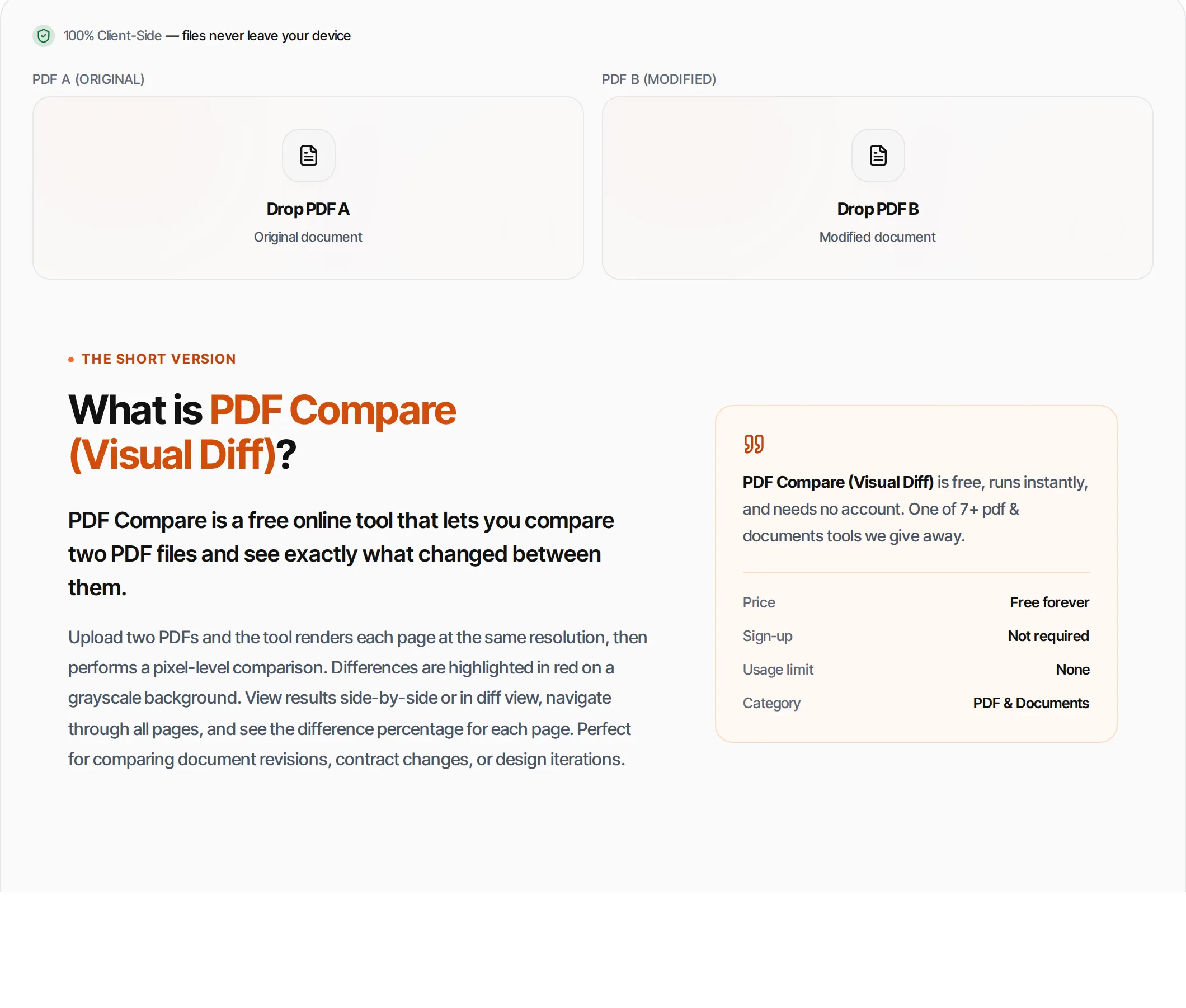
PDF Compare is a free online tool that lets you compare two PDF files and see exactly what changed between them.
Upload two PDFs and the tool renders each page at the same resolution, then performs a pixel-level comparison. Differences are highlighted in red on a grayscale background. View results side-by-side or in diff view, navigate through all pages, and see the difference percentage for each page. Perfect for comparing document revisions, contract changes, or design iterations.
How to use PDF Compare (Visual Diff)
- 1
Upload PDF A
Drop or click to upload the original PDF document in the left panel.
- 2
Upload PDF B
Drop or click to upload the modified PDF document in the right panel.
- 3
Compare
Click Compare. Each page is rendered and compared pixel by pixel.
- 4
Review differences
Navigate pages with arrows. Red areas show differences. The percentage indicates how much of the page changed.
- 5
Switch views
Toggle between Side by Side (see both versions) and Diff View (red overlay on grayscale) for different perspectives.
Everything this tool
does for you
- Pixel-level visual comparison
- Red overlay highlights all differences
- Side-by-side and diff overlay views
- Per-page difference percentage
- Color-coded page indicators (green/yellow/red)
- Handles different page counts gracefully
- Navigate through all pages
- Configurable sensitivity threshold
- Runs in your browser — files never uploaded
- No signup or watermarks; PDF files up to 100 MB
Frequently asked questions
Beyond this tool
See the full picture for your website.
Enter your URL for a free audit across eight scored areas. See prioritised issues and clear next steps in one report.
Free to start · No signup required
- Upload two PDFs for side-by-side comparison
- Pixel-level difference highlighting
- Red overlay shows changed areas
- Difference percentage per page
- Navigate through all pages
- Files never leave your browser