PDF OCR — Text Recognition
Extract text from scanned PDFs using AI-powered OCR — convert image-based PDFs to searchable text.
- 100% free
- No sign-up
- Clear controls
- Open and use
What is PDF OCR — Text Recognition?
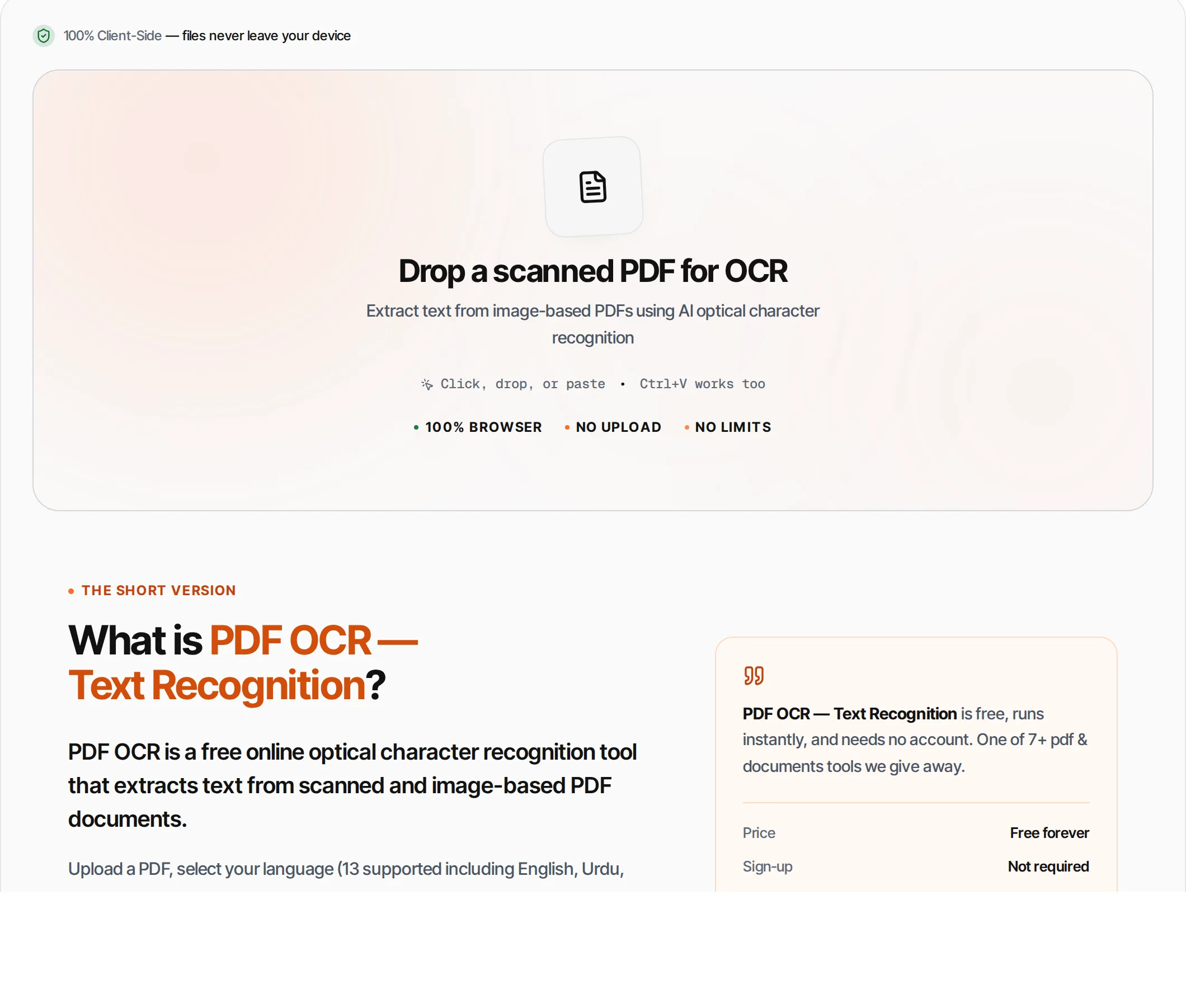
PDF OCR is a free online optical character recognition tool that extracts text from scanned and image-based PDF documents.
Upload a PDF, select your language (13 supported including English, Urdu, Hindi, Arabic, Chinese), and the tool renders each page at high resolution and runs Tesseract.js WASM-based OCR to recognize text. Results include per-page confidence scores, and you can copy or download all extracted text. The recognition runs in your browser and your PDF is never uploaded. The language model itself is downloaded on first use for the language you pick — that is a public model file, not your document.
How to use PDF OCR — Text Recognition
- 1
Upload a scanned PDF
Drop or click to upload a PDF that contains scanned images or photos of text.
- 2
Select language
Choose the primary language of the text in your document. This improves recognition accuracy.
- 3
Run OCR
Click the Run OCR button. Each page is rendered and processed — progress is shown in real-time.
- 4
Review results
Extracted text is shown per page with confidence scores. Green = high accuracy, yellow = moderate, red = low.
- 5
Copy or download
Copy all text to clipboard or download as a .txt file. Filter by specific pages if needed.
Everything this tool
does for you
- 13 language support: English, Urdu, Hindi, Arabic, Chinese, Japanese, Korean, and more
- Per-page confidence scoring with color indicators
- High-resolution 2x rendering for better accuracy
- Copy all text or download as .txt
- Filter results by page number
- Powered by Tesseract.js WASM (runs in browser)
- Progress tracking with status messages
- Runs in your browser — files never uploaded
- No signup; PDF files up to 100 MB
- Works with scanned documents, photos, and image PDFs
Related free tools
Frequently asked questions
Beyond this tool
See the full picture for your website.
Enter your URL for a free audit across eight scored areas. See prioritised issues and clear next steps in one report.
Free to start · No signup required
- Extract text from scanned/image PDFs
- 13 languages including Urdu and Hindi
- Per-page confidence scores
- Copy or download extracted text
- Powered by Tesseract.js WASM
- Runs entirely in your browser