HTML to PDF Converter
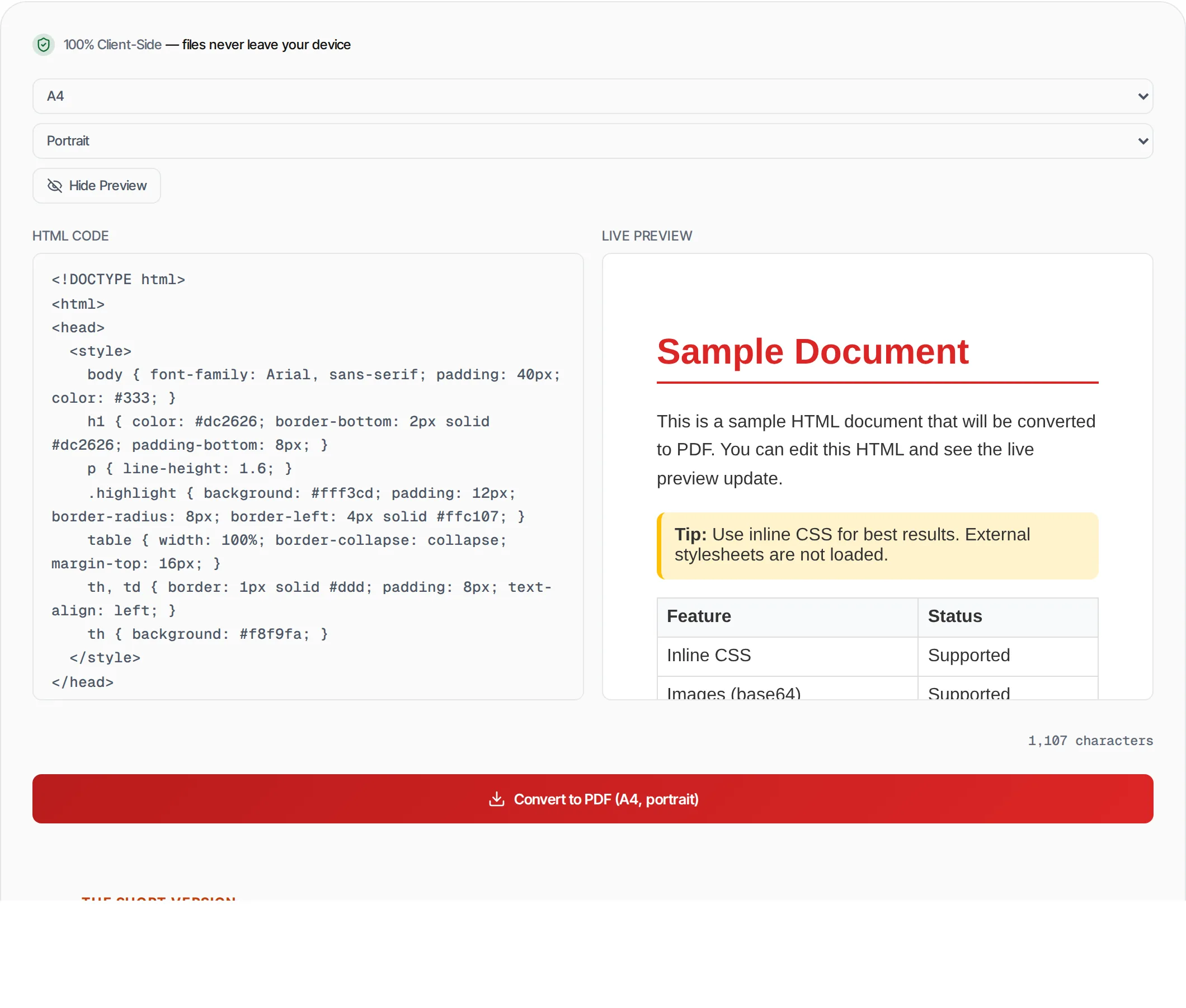
Paste HTML code and convert it to a downloadable PDF — renders with full CSS styling.
- 100% free
- No sign-up
- Clear controls
- Open and use
1,107 characters
What is HTML to PDF Converter?
HTML to PDF Converter is a free online tool that transforms HTML code into downloadable PDF documents.
Paste your HTML with inline CSS, see a live preview, and convert it to a professional PDF in one click. Supports tables, images (base64), custom styling, and multi-page content that automatically splits across pages. Choose from A4, Letter, or Legal page sizes in portrait or landscape orientation. Everything runs in your browser — your code never leaves your device.
How to use HTML to PDF Converter
- 1
Paste your HTML
Type or paste HTML code in the editor. A sample document is provided to get started. Inline CSS is fully supported.
- 2
Preview in real-time
The live preview panel shows exactly how your HTML renders. Toggle it on or off with the Preview button.
- 3
Choose page settings
Select page size (A4, Letter, Legal) and orientation (portrait or landscape) from the dropdown menus.
- 4
Convert
Click Convert to PDF. The HTML is rendered and captured as a high-quality PDF document.
- 5
Download
The PDF downloads automatically. Long content is split across multiple pages.
Everything this tool
does for you
- Live side-by-side HTML preview
- Full inline CSS support
- Tables, images and styled elements
- A4, Letter and Legal page sizes
- Portrait and landscape orientation
- Multi-page for long content
- High-quality 2x resolution rendering
- Sample template to get started
- Runs in your browser — code never uploaded
- No signup, no watermarks, no limits
Related free tools
Frequently asked questions
Beyond this tool
See the full picture for your website.
Enter your URL for a free audit across eight scored areas. See prioritised issues and clear next steps in one report.
Free to start · No signup required
- Paste or type HTML with inline CSS
- Live preview updates as you type
- Page size: A4, Letter, Legal
- Portrait and landscape orientation
- Multi-page support for long content
- Runs entirely in your browser